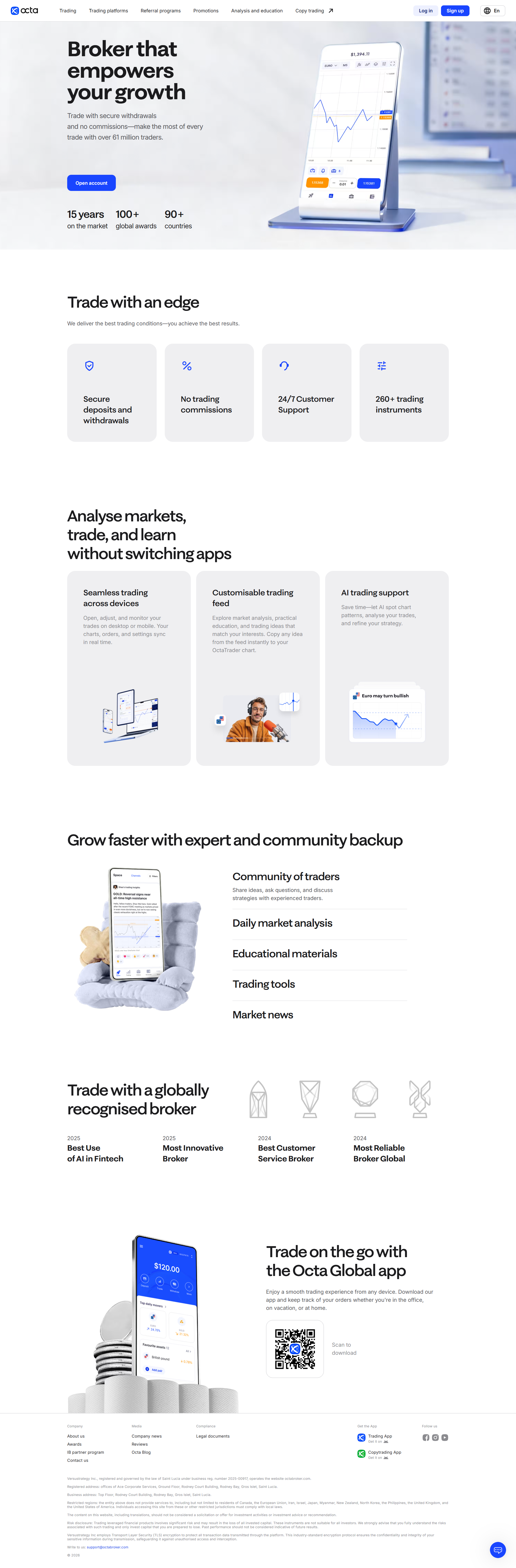
Octa Login is the secure gateway to your Octa (formerly OctaFX) Personal Area and trading terminals, allowing you to manage funds, verify your identity, and execute trades across global financial markets.
Understanding how the login ecosystem operates is essential because Octa separates profile management (handling money, settings, and account creation) from trade execution (buying and selling assets on charts). Below is a complete guide on what Octa Login is, how the two-tier login system works, and how to troubleshoot common access issues.
What Is Octa Login?
When traders refer to "Octa Login," they are referring to the authentication process used to access Octa’s online brokerage ecosystem. Because online brokers must comply with strict financial security and Anti-Money Laundering (AML) protocols, Octa uses a dual-layer access structure:
1. Octa Personal Area (Profile Login): This is your central administrative hub, accessible via the Octa Login Portal on a web browser or through the official Octa Trading App. You log in here using your registered email address (or linked Google, Facebook, or Apple ID) and your Profile Password.
2. Trading Terminal Login (Platform Credentials): Each individual live or demo trading account you create inside your Personal Area generates its own unique Account Number, Trading Password, and Server Name (e.g., Octa-Real or Octa-Demo). You use these specific credentials to connect to third-party charting platforms like MetaTrader 4 (MT4) and MetaTrader 5 (MT5).
(Note: If you use Octa’s proprietary OctaTrader platform on web or mobile, both layers are integrated—logging into your Personal Area automatically connects you to your live charts without requiring a separate server password.)
How Octa Login Works: Step-by-Step
Depending on whether you want to manage your money or place trades on a chart, the login workflow follows two distinct paths.
1. Logging Into Your Octa Personal Area (Web & App)
Your Personal Area is where all financial and administrative actions happen.
• Step 1 — Navigate to the Official Portal: Open the official Octa Profile Sign-In Page or launch the Octa mobile app. Always double-check the URL to avoid phishing clones.
• Step 2 — Enter Your Credentials: Type in the email address you used during registration and enter your Profile Password. Alternatively, click the Google, Facebook, or Apple icon if you registered via single sign-on.
• Step 3 — Complete Two-Factor Authentication (2FA): If you have enabled 2FA (recommended for security), enter the time-sensitive verification code sent to your authenticator app or email.
• Step 4 — Access Your Dashboard: Once inside, you land on your main dashboard where you can view your Wallet balance, open new demo or live accounts, adjust leverage, and initiate deposits or withdrawals.
2. Logging Into MetaTrader 4 or MetaTrader 5
If you prefer trading on desktop or mobile MT4/MT5 terminals, you cannot use your email address to log in. Instead, follow this process:
• Step 1 — Retrieve Your Account Credentials: When you open a new trading account in your Personal Area, Octa emails you a summary containing your 7- or 8-digit Account Number, Trader Password, Investor Password (read-only access), and Server Name.
• Step 2 — Open the Terminal: Launch MT4 or MT5 on your PC, Mac, Android, or iOS device. On desktop, click File > Login to Trade Account. On mobile, tap Manage Accounts > + (Add Account) > Login to an Existing Account.
• Step 3 — Select the Broker Server: Search for Octa (or OctaFX on older server lists) and select the exact server assigned to your account (for example, Octa-Real for live funds or Octa-Demo for virtual practice funds).
• Step 4 — Authenticate: Enter your numerical Account ID in the Login field and your Trader Password in the Password field, then click Sign In. Once the connection bar in the bottom-right corner turns green/blue and shows incoming data speeds, you are connected to live market quotes.
Core Functions Inside the Octa Dashboard
Once you successfully complete the Octa login process, the platform works as an end-to-end financial and trading workspace:
• Wallet & Account Segregation: Octa provides a central Wallet that keeps your unallocated funds safe from active market exposure. You deposit money into your Wallet first, then transfer specific amounts into individual MT4, MT5, or OctaTrader accounts.
• Deposits & Withdrawals: Inside the Personal Area, you can fund your account using local bank transfers, credit/debit cards, e-wallets, or cryptocurrencies with zero broker commission. To comply with international Know Your Customer (KYC) regulations, you must upload a government-issued ID and proof of address to verify your profile before requesting a withdrawal.
• Multi-Account Management: A single Octa login allows you to run multiple trading accounts simultaneously. For example, you can test high-risk strategies on a $10,000 demo account while managing a conservative live account, switching between them with one click.
• Copy Trading Integration: Through the Octa Copy Trading section in your profile, beginners can browse ranked Master Traders, inspect their historical drawdown and profit metrics, and automatically mirror their trades in real time.
• Built-In Market Analytics: The dashboard integrates Space, Octa’s native feed of technical chart patterns, economic calendar alerts, and daily market briefings directly alongside your open positions.
Security Practices & Troubleshooting Common Login Issues
Because financial accounts are frequent targets for unauthorized access, understanding how to protect your login and resolve connection errors prevents downtime during volatile market hours.
Issue / Error Message Common Cause How to Fix It
"Invalid Account" in MT4/MT5 Typing your email instead of your numeric ID, choosing the wrong server, or using your Profile Password instead of your Trader Password. Check your welcome email for your exact numeric login ID and server name, or reset your Trading Password inside your Personal Area.
"No Connection" in Terminal Poor internet connectivity or an outdated server selection. Click the connection status bar in the bottom-right corner of MT4/MT5 and select Rescan Servers to refresh the data center ping.
Forgotten Profile Password Misplaced login credentials for the web or mobile Personal Area. Click Forgot Password? on the Octa Login Page, enter your email, and follow the password reset link sent to your inbox.
Withdrawal Button Locked Unverified identity or incomplete KYC documentation. Go to Settings > Verification Status in your profile and submit clear photos of your national ID/passport.
Essential Security Habits
• Never Share Your Trader Password: If you want a mentor or investor to view your trading performance, give them your Investor Password. It grants read-only access to your charts and trade history without allowing them to open, close, or modify orders.
• Enable Two-Factor Authentication (2FA): Activate 2FA inside your Personal Area security settings so that even if someone guesses your password, they cannot authorize withdrawals or change account settings without your secondary device.
• Verify Regional Regulations: Before depositing live capital, always confirm how online forex and CFD trading is regulated in your country (for instance, in India, retail forex trading is strictly governed by the Reserve Bank of India (RBI) and SEBI under FEMA rules, limiting authorized pairs primarily to INR-based currency derivatives on recognized domestic exchanges).

Offline Website Software